Installation guide
Install Solar Fire X
Download, install and activate Solar Fire X on Windows or Mac.
Before you start
Have your delivery email ready. It contains your download links, registration name, serial number and password. You’ll need an internet connection to download and activate the program.
Choose the instructions for your computer below. Solar Fire X runs directly on a Mac, without Parallels or Windows.
Windows
- Download the Windows installer using the link in your delivery email. If the download is a ZIP file, extract it first.
- Open the installer. Close Solar Fire X first if it’s already running. If Windows asks for permission, check that the prompt identifies the expected Astrolabe installer. If it shows an unknown publisher or blocks installation, contact support with the exact message before proceeding.
- Choose Install and wait for the installer to finish copying the files.
Screenshot placeholder
Windows installer welcome screen - Open Solar Fire X. Leave Open Solar Fire X now selected and choose Finish, or open the program later from the Start menu or desktop shortcut.
Screenshot placeholder
Installation complete, showing Open Solar Fire X now and Finish
Continue to Activate your copy below.
Mac
- Download the Mac version using the link in your delivery email. If the download is a ZIP file, double-click it to extract the contents.
- Open the disk image, the file ending in .dmg.
- Drag Solar Fire X into Applications in the disk-image window. Wait for copying to finish, then eject the disk image.
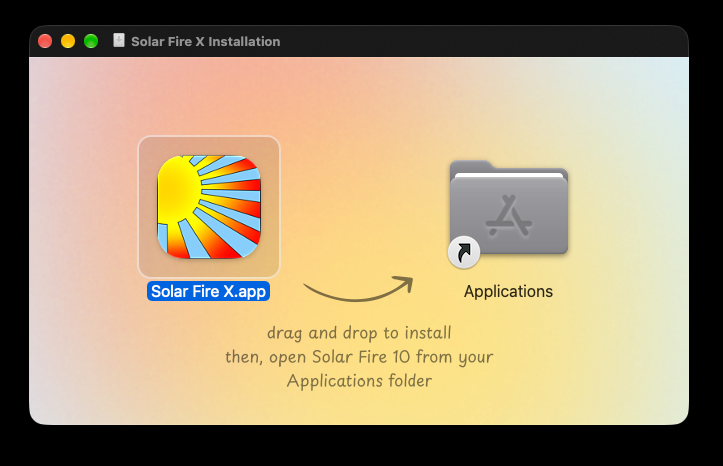
- Open Solar Fire X from Applications. Opening the disk image alone does not install the app.
Screenshot placeholder
Solar Fire X in Applications - If macOS asks whether you want to open an app downloaded from the internet, choose Open for your Astrolabe download. If it says the app is damaged or cannot be verified or checked for malicious software, contact support with the exact message.
The first launch may take longer while the program prepares its data.
Activate your copy
- In Activate Solar Fire X, enter the Name, Serial Number and Password exactly as supplied in your delivery email.
- Choose Activate while connected to the internet.
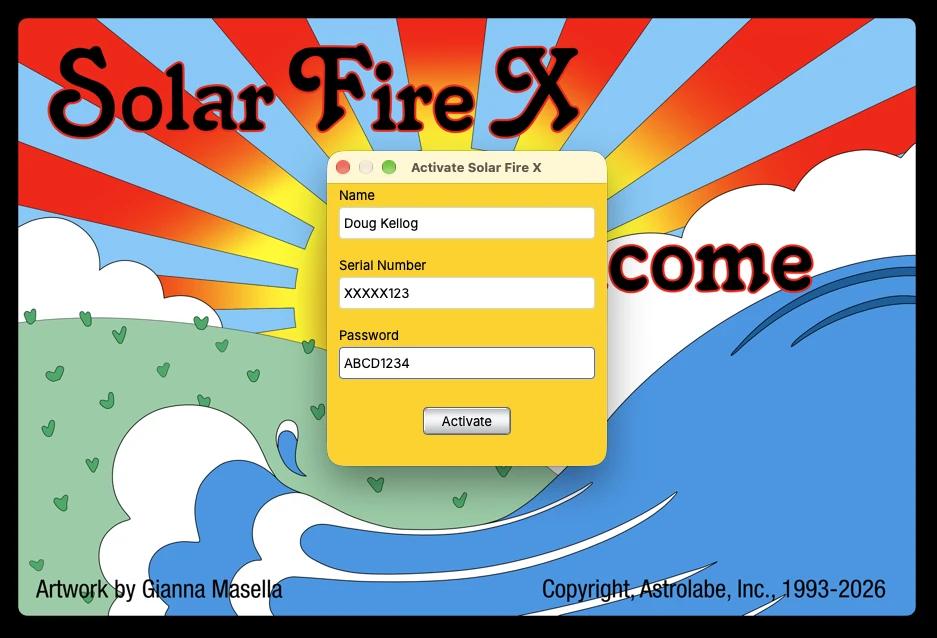
Enter the registration details from your delivery email. Demonstration values shown.
Use the details from your Solar Fire X delivery email, including when upgrading from an earlier version.
Bringing over existing charts?
Keep your original files and a backup. After installing and activating Solar Fire X, choose Utilities → Import Charts, Files, and Settings….
Moving from another computer requires copying the old library across first. Contact support if you need help choosing the correct files.
Need help?
Email support@alabe.com with your Windows or macOS version, what happened and the exact error message. Include your Solar Fire X version and a screenshot if available. For activation problems, include your serial number.
If activation fails, first check your internet connection and compare all three registration fields with your delivery email.