
MAIN SCREEN
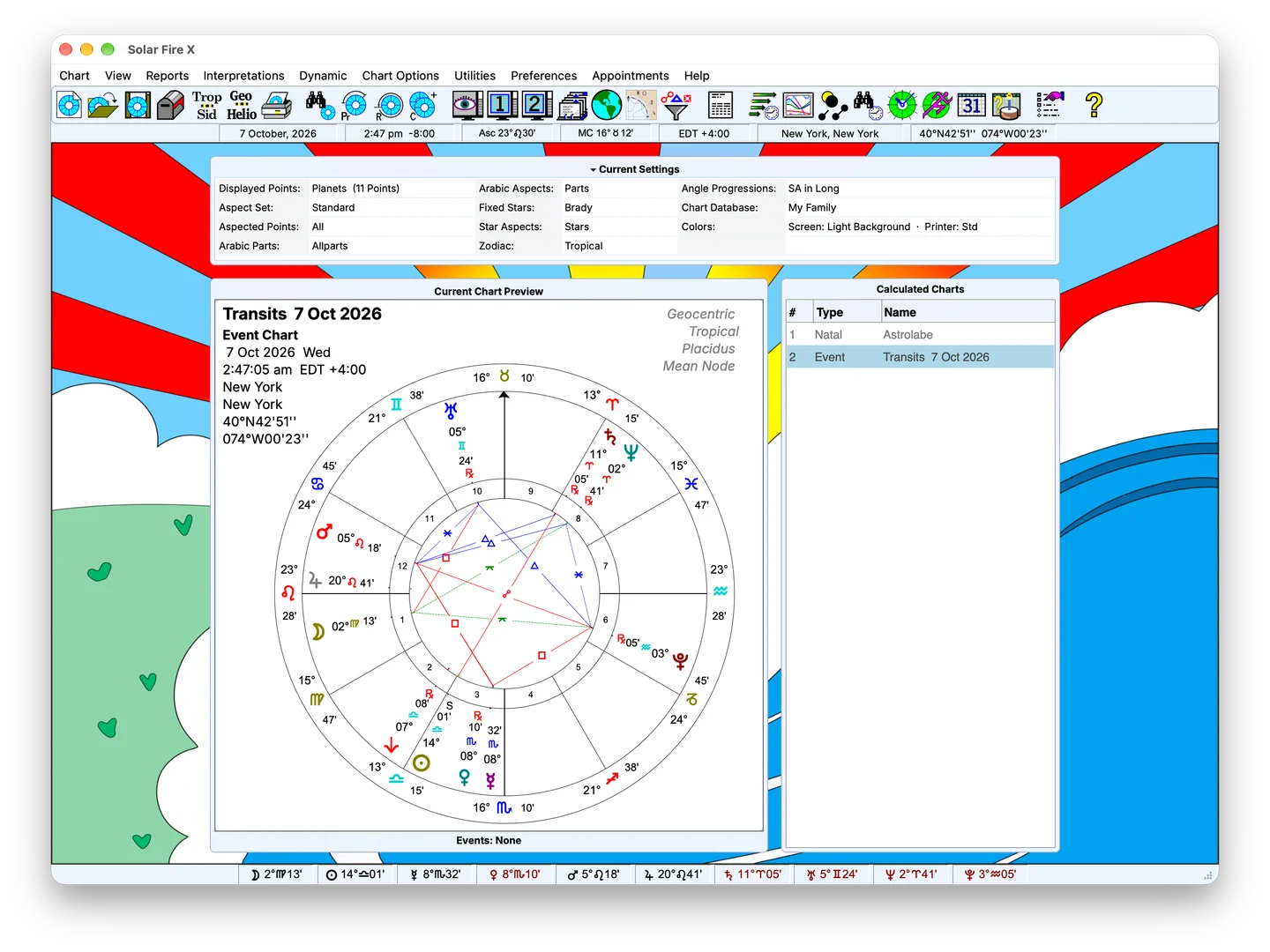
The main screen
Calculated charts, current settings and the planet bar — the desk everything starts from.
Related feature →Features
Calculate and compare charts, explore timing and locations, and turn your analysis into chart pages and reports. Solar Fire X brings these tools together on Windows and native Mac.
Feature index
Calculation · Wheels · Design
Calculate natal, event, relationship and derived charts. Compare them in multiwheels and synastry grids, then design wheels and pages around your work.
Explore Charting →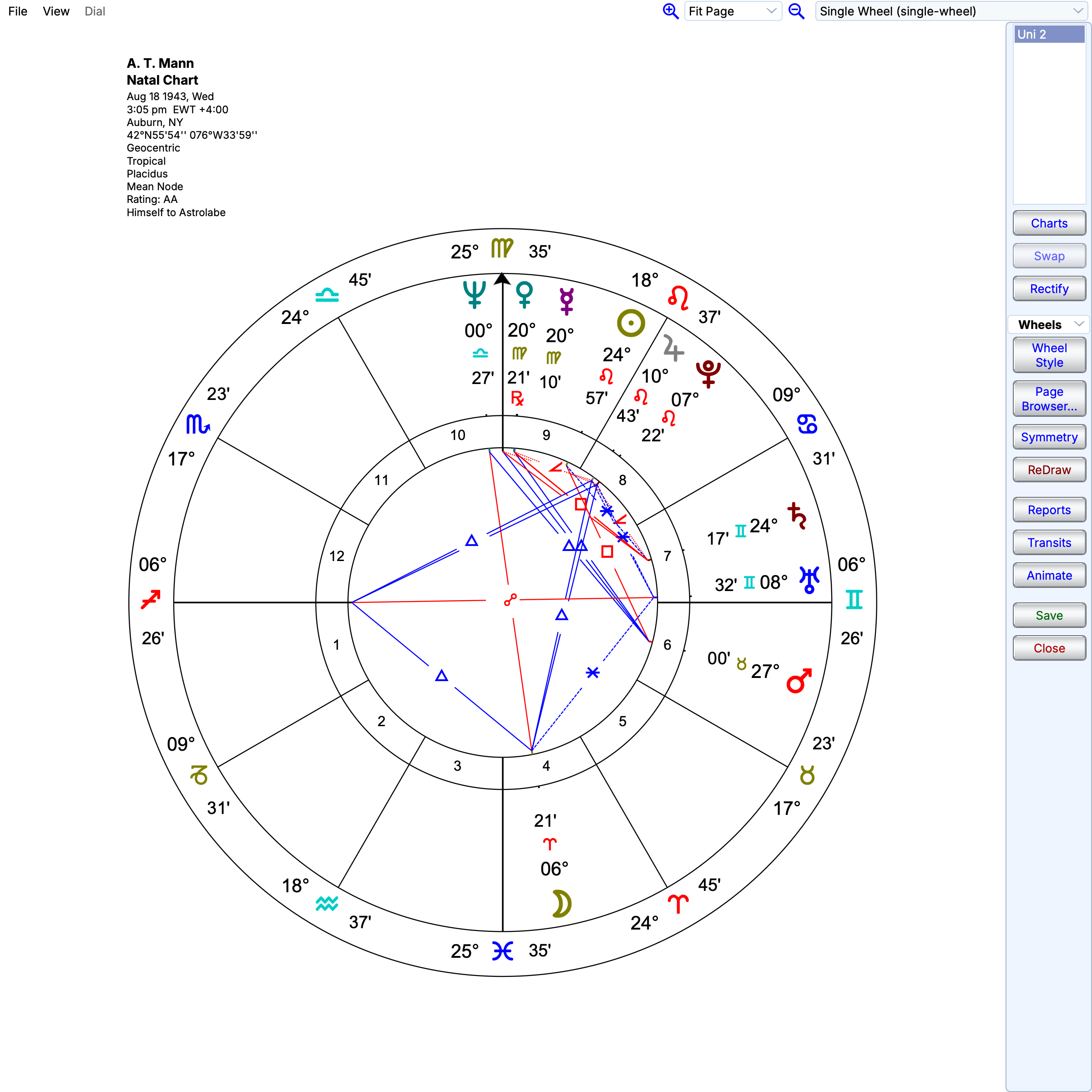
Astrocartography
Astrocartography explores how a birth chart relates to different places. Solar Fire X helps you examine planetary lines and compare locations with relocated charts.
Explore Maps →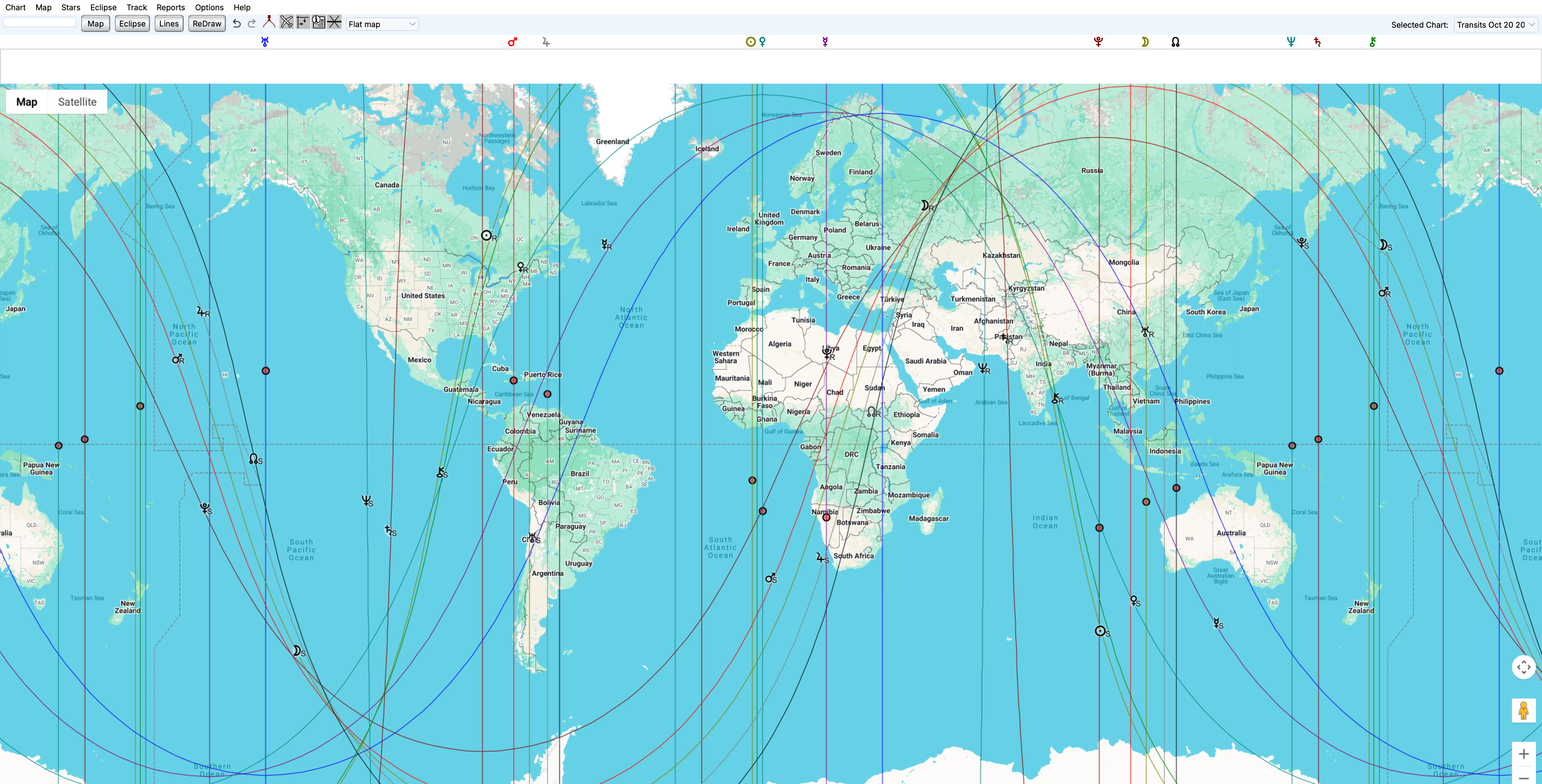
Midpoints · Dials · Speculum
Explore midpoint relationships in a dedicated dial workspace. Bring coordinate and Speculum listings into the analysis as you examine chart positions.
Explore Symmetry →Interpretation · Tabulation · Print
Examine analytical tables alongside your charts. Arrange chart material in reusable pages and export supported HTML reports and Speculum views as PDFs.
Explore Reports →Interpretation · Text · Editing
View available interpretation text alongside chart factors. Move between individual descriptions and the chart as you develop your reading.
Explore Interpretations →Transits · Directions · Time Maps
Track transits, progressions and directions through event reports, Time Maps and the Graphic Ephemeris. Move between dates and chart views as you develop your analysis.
Explore Forecasting →Search · Elections · Data
Search chart collections using selected conditions and open matching results for further work. Use electional tools to find candidate times within a chosen date range.
Explore Research →By practice
Explore the tools for your practice: search candidate times for electional work, examine dignities and Lots for traditional astrology, or compare mapped lines and relocated charts for astrocartography.
See it work
Follow the workflow from chart calculation to timing, maps and reports.
Calculated charts, current settings and the planet bar — the desk everything starts from.
Related feature →Examine the chart wheel, compare chart layers and focus on the aspects relevant to your analysis.
Related feature →Use the real-time clock and chart animation to examine how positions change over time.
Related feature →The Time Map lays every dynamic event of a report along one ruler of time.
Related feature →Examine angular lines on the map and compare them with a relocated chart.
Related feature →Examine midpoint relationships on a dial and review their positional context in the speculum.
Related feature →From raw calculation to a designed client page in the Page Designer.
Related feature →