Importing Charts, Files and Settings
If you are new to Solar Fire then you will not need to import items from another Solar Fire installation, and you can skip this topic. However, if you have owned an earlier version of Solar Fire, and it is still installed on your computer, or if you have a copy of Solar Fire on another disk which is accessible to your computer (via a network, flash drive/USB or other link), then you may wish to import copies of chart files, other files and Solar Fire settings and Preferences from those other copies of Solar Fire. In many cases this is possible.
The main benefits of this utility are...
•Upon first installation, it allows you to automatically set up Solar Fire in the same way as your previous version of Solar Fire.
•At any later time, you can import chart files from Solar Fire that are on another computer.
>> Use Astrolabe's Astrobackup utility
Astrolabe provides a small program that can transfer your files from an older Solar Fire to your new version. This is called Astrobackup; you can watch a short demo video (5 minutes) and download it from our website here: https://alabe.com/astrobackup/
>> To open the import dialog
•Select Import Charts, Files, and Settings... from the Utilities menu.
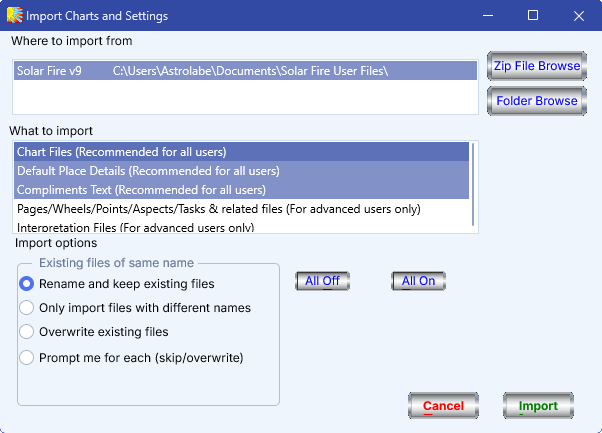
Note: Due to the flexibility of Solar Fire in allowing a variety of user-created files and settings and the fact that there are many differences in design of different versions of Solar Fire, this import process may not always be 100% successful in setting up Solar Fire exactly as you would like. You may find after importing settings that you still need to make several adjustments to settings manually.
Solar Fire X by Astrolabe Inc Copyright © All rights reserved.