Selecting a File
In the file management dialog box, selecting a file and then clicking the Select button causes the contents of that file to be read into the program to be used wherever appropriate for that type of file.
For example, selecting a file from the Displayed Points list called "plan&ast.pts", updates the list of points that will be displayed on any subsequently drawn chart with the points in this file. This file now also becomes the "current" file wherever this type of file (Displayed Points in this example) is used in the program.
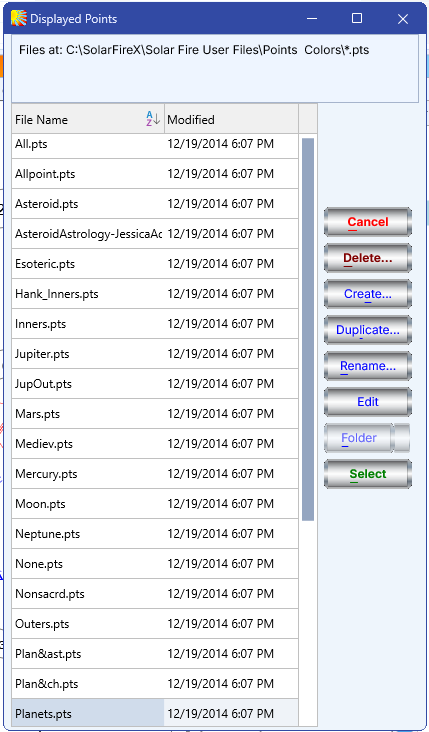
If the Current Settings panel on the Main Screen displays the current setting for this type of file, then as soon as it is selected, its name is updated in the Current Settings panel showing it is now being used (for example, for Displayed Points, plan&ast).

>> To select a file
•Select a file from the list of file names and click on the Select button, or double-click on a file from the list.
If you are selecting a chart file from the Chart Database, then you also have the option of choosing a folder to look in first. After file selection, the file management dialog box will close.
Note: If you need more space to see long file or folder names, then re-size the dialog box by hovering the mouse over a border until the cursor is a left-right arrow, then click and hold down the left mouse button, drag the border to the desired position, then release the mouse button.
Solar Fire X by Astrolabe Inc Copyright © All rights reserved.