Opening a Star File
You may open any star file (of type Solar Fire v3/v4/v5 format) which exists on your computer or on a diskette/flash drive, but only the first 36 stars of that file will be accessible from within Solar Maps. To use stars which are not already included in a star file on your computer, use the Fixed Star Editor to create new star files or add or edit stars in existing star files. This is a separate program with its own icon. See Editing a Fixed Stars File for further information on how to use this.
Select “Open Star File...“ from the “Stars“ menu.
This will display the “Select Star File to Open” dialog box, displaying a list of star files from which you can choose.
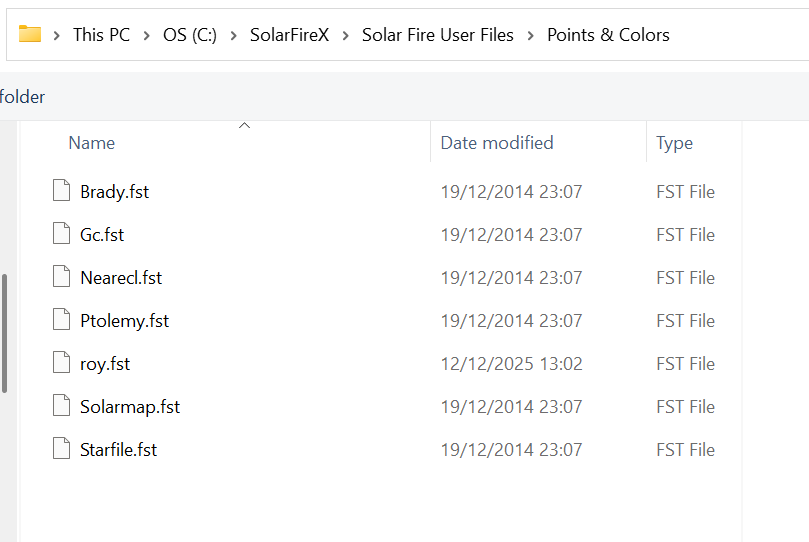
Note that when you click on a file name, a description of the file appears in the box along the bottom of the window. The star files are initially stored in Solar Fire User Files/Points and Colors, but if necessary, you can choose a different disk drive by selecting an item from the drop-down list of drive names, and look in a different directory by double-clicking on directory names in the directory list box on the left.
Selecting Stars
Once a star file has been opened, it is possible to select any of the first 36 stars in that file to be displayed alongside the other selected chart points.
Select the “Select Stars...“ item from the “Stars“ menu. This will display the “Select Stars” dialog box.
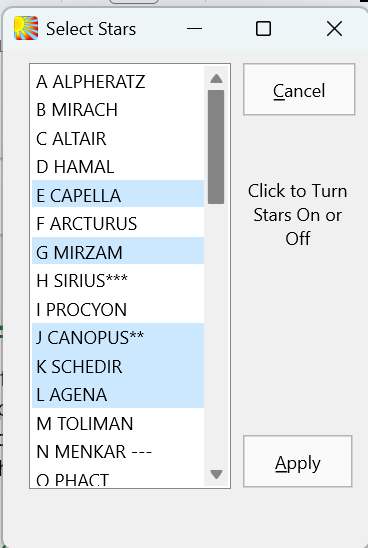
Select the stars as are required by clicking on individual entries in the list. The stars are labeled with alphabetic characters in sequence from A to Z and then a to j. The labels are required as symbols for the stars when star lines are labeled on the maps.
Solar Fire X by Astrolabe Inc Copyright © All rights reserved.